
Murder Mystery 2 runs in rounds with three roles. Your first useful observation is the phase you are in. The game is different when you are waiting with everyone in the lobby, when a new role appears, and when a round is already under way. The developer's Roblox page identifies the roles and the collection and trading features.
From the lobby to the results
In the lobby, wait for the start and read the regular game prompts. If you join while a round is already in progress, give the client time to show your current place in the cycle. The role reveal belongs to a new round. Use the results as a stopping point: when the next reveal appears, start with that new information.
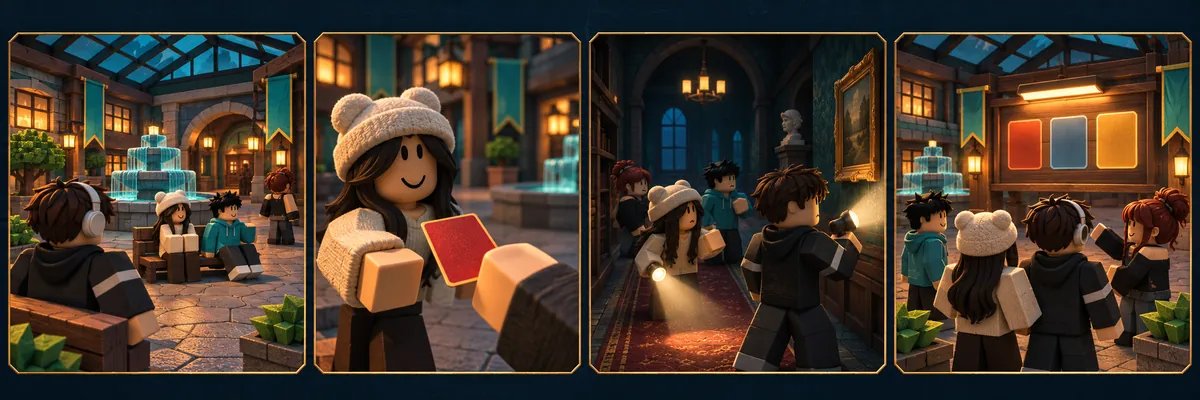
The roles on the official game page
Innocent
The Innocent goal centers on surviving and figuring out who has the opposing role. The official setup asks you to reason with incomplete information. Imagine seeing a player enter a room just as another player disappears from view. Timing may be worth remembering, but what you actually saw and what you inferred are separate. That distinction is useful when other players begin making confident guesses.
Sheriff
The Sheriff helps the Innocent. The role's objectives differ from those of a player who is only trying to stay in the round. Read the role message again at the beginning of another match if you missed it the first time. The same avatar may carry any role across successive rounds, so an observation belongs to the round in which you made it.
Murderer
The Murderer gives the round its central mystery. The role is not public information just because players speculate about it in chat. As the round ends, compare your understanding to whatever the official interface actually supplies. That is a better lesson in how the game works than a list of labels copied from an unrelated menu.
Coins, round information and your collection
The visible object in the round, the round display and the balance after a result answer different questions. If you are trying to learn from a normal session, note where each number appears. If an event introduces a temporary currency or a new screen, record its exact label so you can identify it later. The dashboard itself is the source for current amounts and requirements.
The item collection is separate from the information that scrolls past during a match. Check its categories and item names in the current version of the game. During a trade, confirm the final visible offer, especially if the other player has changed one item. Keep login, email and verification information private and use the account guide if someone redirects you away from the normal trade.
A first round on mobile or PC
Test a camera movement and a normal movement control before the next round begins. On touch, do both with the grip you actually use. If a button covers information, note the screen orientation and device size. On a computer, check the official control and graphics settings. A screenshot of a cramped overlay can be helpful in an interface report if you first remove player names or other identifying information.
What a first round can teach you
Try describing one round in four sentences afterward. Start with where the game put you when you joined, then name the role the game revealed. Describe one thing you observed directly during play. Finish with one piece of information the actual results showed. The exercise is useful even on a round that ended quickly, because you can see which of your observations belonged to the game and which belonged to chat.
If you arrive to a confusing screen, wait for the next transition before assuming something is broken. A new arrival can see other people moving without having the same round information. Compare that with a technical issue in which the normal interface stays blank or the client reports a connection error. In the second case, note what screen appeared before the error and compare an unrelated Roblox experience. Client troubleshooting
Read three different screens
An in-round display describes what is happening now. Recent results describe a round that has just finished. Your collection describes what you can see in your inventory. Open each for the question it answers. For instance, you might remember collecting something on a map and expect to see an item with the same name in the inventory. Check the label that belonged to the collected object.
The same rule helps if you watch a gameplay video. Before taking a number as a rule, identify its location in the screenshot. Then compare the surrounding labels with the ones in the current client. If the labels are different, they may describe a different currency or event. The example can still teach you where to look, while the displayed number belongs to the situation in the video.
A small control comparison
Start with your normal way of holding the device. Notice whether turning the camera forces your hand across a message area. Change one normal display or input option, then test a similar movement when the game is quiet. One change gives you something you can compare. On a computer, separate a controls question from a performance question: if movement works as expected but the view stutters when the scene gets busy, graphics settings are more relevant than key bindings.
When you report a problem, describe this contrast in observable terms. “The role text covers my touch controls in landscape at the start of a round” tells someone where to look. “Mobile is broken” leaves the phase, device and exact symptom unknown. Keep the screenshot private unless you have removed personal details.